

If you’ve ever wondered how to screenshot on Mac, you’re not alone. Whether you’re saving an important document, capturing a funny moment, or creating a tutorial, screenshots are incredibly useful. The good news? Apple makes it surprisingly easy—once you know the right shortcuts.
In this guide, you’ll learn everything from basic screenshot methods to advanced tricks like cropping, copying to clipboard, and even saving as a PDF. Whether you’re using a MacBook Air, MacBook Pro, or desktop Mac, this article has you covered.
How to Screenshot on Mac (Basic Methods)
Let’s start with the essentials. These keyboard shortcuts work on almost every Mac device.
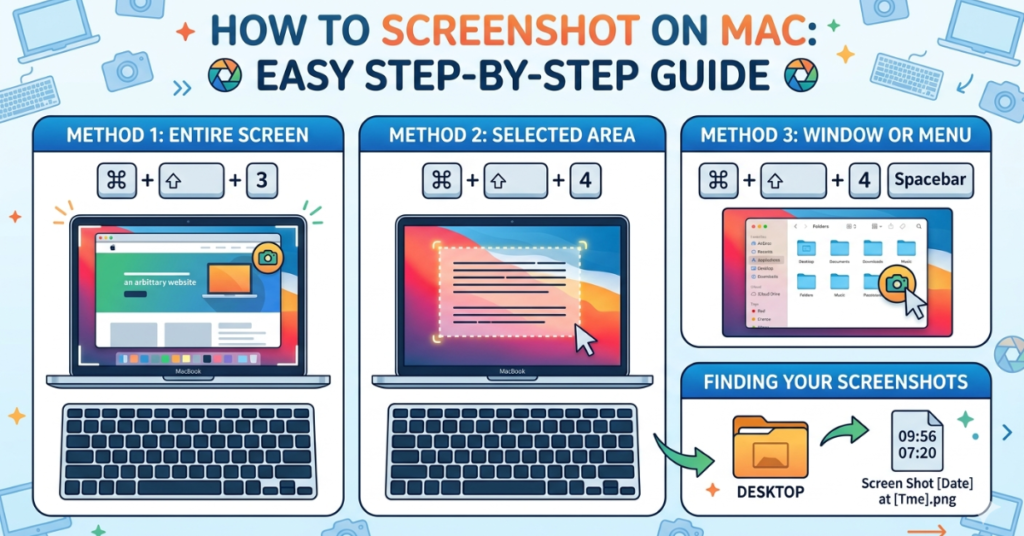
Capture the Entire Screen
Press:
Command (⌘) + Shift + 3
- Instantly captures your full screen
- Saves automatically to your desktop
This is the quickest way if you need everything visible on your Mac computer.
Capture a Selected Portion
Press:
Command (⌘) + Shift + 4
- Your cursor turns into a crosshair
- Click and drag to select the area you want
This method is perfect if you’re learning how to screenshot on mac and crop in one step.
Capture a Specific Window
Press:
Command (⌘) + Shift + 4, then tap Spacebar
- Hover over a window
- Click to capture it neatly (with shadow)
How to Screenshot on Mac Laptop and Desktop
Whether you’re using a MacBook, iMac, or Mac mini, the shortcuts are identical.
Works on:
- MacBook Air
- MacBook Pro
- Mac desktop
- Mac mini
So if you’re searching for how to screenshot on mac laptop or desktop—these same commands apply universally.
How to Screenshot on Mac and Save to Clipboard
Sometimes you don’t want a file—you just want to paste the screenshot somewhere.
Press:
Command (⌘) + Control + Shift + 3 (full screen)
Command (⌘) + Control + Shift + 4 (selection)
- Copies screenshot to clipboard
- Paste using Command (⌘) + V
This is ideal for quick sharing in chats or documents.
How to Screenshot on Mac Without Keyboard
If your keyboard isn’t working, don’t worry.
Use the Screenshot Tool:
- Press Command (⌘) + Shift + 5
- A toolbar will appear
- Choose from:
- Capture entire screen
- Capture selected window
- Capture portion
You can also set timers and choose where screenshots save.
How to Screenshot on Mac with Windows Keyboard
Using a Windows keyboard on a Mac? The keys are slightly different:
- Command (⌘) → Windows key
- Shift → Same
- Control → Ctrl
Example:
Windows + Shift + 3 = Full screenshot
It may take a bit of practice, but it works just as well.
How to Screenshot on Mac and Crop
Good news—you don’t always need extra apps.
Method 1: Crop While Capturing
Use:
Command (⌘) + Shift + 4
Drag to select only what you need.
Method 2: Edit After Screenshot
- Click the screenshot preview (bottom corner)
- Use built-in editing tools
- Crop, annotate, or resize
How to Screenshot on Mac and Paste or Convert
Screenshots aren’t just images—you can do more with them.
Paste Instantly
Use clipboard shortcuts and paste into:
- Word documents
- Emails
- Messaging apps
Save as PDF
- Open the screenshot
- Click File > Print
- Select Save as PDF
This is useful for documentation or professional sharing.
How to Screenshot on Mac Pro, Mac Air, and More
No matter the device—MacBook Air, MacBook Pro, or even Mac Pro—the process remains the same. Apple keeps its system consistent, so once you learn it, you can use it everywhere.
Pro Tips for Better Screenshots
Want to level up? Try these:
- Use Command (⌘) + Shift + 5 for advanced controls
- Change save location in options menu
- Use Preview app for detailed editing
- Disable thumbnail preview if it slows your workflow
FAQs
How do I take a screenshot on a Mac quickly?
Press Command (⌘) + Shift + 3 to capture the entire screen instantly.
Where do screenshots go on Mac?
By default, they save to your desktop unless you change the location.
Can I take a screenshot without a keyboard?
Yes, use the screenshot toolbar with Command (⌘) + Shift + 5.
How do I copy a screenshot instead of saving it?
Add the Control key to your shortcut to copy it to the clipboard.
How do I crop a screenshot on Mac?
Use Command (⌘) + Shift + 4 to select a specific area, or edit it afterward.
Does screenshot method differ on MacBook Air or Mac mini?
No, all Mac devices use the same screenshot shortcuts.
Conclusion
Learning how to screenshot on Mac is one of those small skills that makes a big difference in your daily workflow. From quick captures to advanced editing and clipboard tricks, Mac gives you powerful tools right out of the box.
Now that you know the shortcuts and techniques, try them out and see which ones fit your routine best. Once you get the hang of it, taking screenshots will feel completely effortless.